 10 min read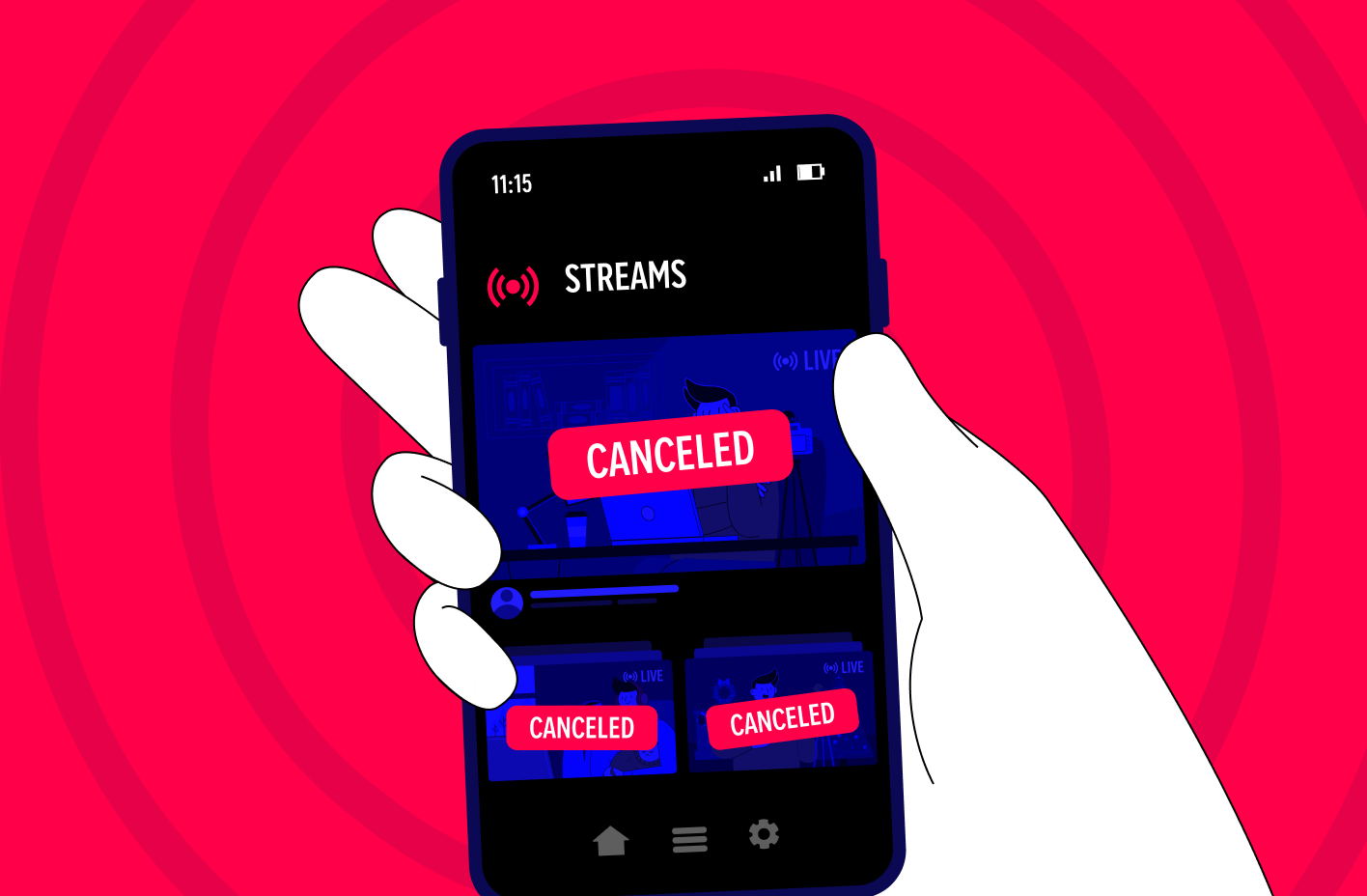

TL;DR
- Content ID checks every YouTube live stream in real time. No queue, no human review, no grace period.
- A match typically swaps your feed for a placeholder image and a warning, not a quiet claim like you'd get on an upload.
- Ignore the warning and YouTube can pause the broadcast or shut it down entirely.
- Fair use won't save a live stream in the moment. It's argued after a claim already exists, and a broadcast can't pause for that.
- Safe music sources for live: YouTube Audio Library, Epidemic Sound, StreamBeats, Pretzel Rocks.
- YouTube Creator Music doesn't cover live content at all, even for tracks you've licensed for regular uploads.
- Repeat violations escalate from a warning to a strike, and strikes can lock you out of live streaming, sometimes for good.
Why Do YouTube Live Streams Get Interrupted?
Live streams on YouTube are often interrupted not because of a poor internet connection but because of content-related violations, including:
- Copyright infringement, where you use copyrighted content, such as music, videos, or images, without permission from the original creator;
- Violation of community guidelines, such as using prohibited material such as violence, racism, pornography, etc.;
- User complaints about inappropriate or offensive content;
- Restrictions due to geographic locations where the content you are streaming is prohibited (thus, your stream will be blocked in those areas or interrupted).
Ultimately, if you regularly receive strikes for copyright or community guidelines infringement, you may face future restrictions on YouTube live streaming.
How Live Content ID Works in 2026
Content ID treats a live broadcast very differently from an uploaded video, and that catches a lot of streamers off guard. Upload something with a copyrighted track and get a match, and you're usually looking at a claim: the video stays up, ads keep running, the rights holder gets paid. Go live with the same track and there's no waiting room for that. YouTube checks your audio and video feed against its database continuously, and once it finds a hit, something happens right away. No queue, no human reviewer weighing in first.
What exactly happens comes down to how the rights holder set up their claim. Most commonly, a placeholder image takes over your feed along with an on-screen warning telling you what to stop playing. Cut the flagged content fast enough and you're back live within seconds. Let it keep running, and YouTube can pause the broadcast or end it. Any actual Content ID claim only lands on the recording afterward, and only if you archive it. The upload-style claim you're probably used to just isn't part of the live experience. For a closer look at how this plays out on music-focused channels specifically, our guide to setting up live music streams walks through the full flow.
That timing gap is also why fair use rarely does you any good mid-stream. It's a legal argument made against a finished piece of content, after a claim already exists. There's no finished piece to point to while a broadcast is still running, so a fair-use defense has nothing to grab onto until the stream is already over.
Music Sources: What's Actually Safe for Live Streaming
A royalty-free service that's fine for uploads doesn't automatically clear you for live. Here's what actually holds up on a live broadcast right now, not just on edited video.
| Music source | Safe for live? | License type | Cost |
|---|---|---|---|
| YouTube Audio Library | Yes | Built-in, YouTube-only | Free |
| Epidemic Sound | Yes | Subscription, cross-platform | From roughly $9.99/month |
| StreamBeats | Yes | Free, no attribution required | Free |
| Pretzel Rocks | Yes | Subscription (limited free tier) | From roughly $4.99/month |
| YouTube Creator Music | No | Not available for live content | — |
Creator Music trips people up because it feels like it should cover everything. It doesn't. YouTube's own documentation rules out live streams and Shorts from Creator Music licensing entirely, so a track that's perfectly fine in your uploads can still flag you the moment you play it on a live broadcast.
What Happens During a Live Copyright Claim, Step by Step
- Detection. Content ID picks up the match against its database within moments of the flagged audio or video playing.
- Warning. A placeholder image and an on-screen note usually take over your feed, telling you what tripped the system.
- Resolution window. Cut the flagged content, and the stream picks back up like nothing happened.
- Interruption or termination. Keep it playing, and YouTube steps in, pausing the broadcast or ending it.
- Strike (if applicable). A formal takedown from the rights holder, or a Community Guidelines violation, turns this into a strike instead of a plain claim. Enough of them and you can lose live streaming access for a while, or permanently.
How to Avoid Restrictions on YouTube Live Streaming
Now, let's figure out how to avoid restrictions on YouTube while streaming.
Community guidelines restrictions
YouTube has several strict requirements for the content that bloggers publish – this is necessary to create a friendly and safe atmosphere for users worldwide. In particular, prohibited content includes:
- Violence, cruelty, threats, shocking scenes;
- Hate speech based on race, gender, religion, etc.;
- Pornographic or erotic content;
- Propaganda of dangerous actions;
- Misinformation on health, politics, or safety;
- Spam, scam, and fraud;
- Content that has received complaints from viewers (and these complaints were approved by the platform's moderators).
If you have doubts about the legitimacy of your content on YouTube, you can also read the official guidelines.
Copyright restrictions
YouTube protects the rights of copyright holders and tracks the content other bloggers use with the Content ID system, which analyzes the data stream in real-time. This content can be music, videos, images, films, and other media and text materials belonging to third parties that you integrate into your stream without a license or permission from the owner.
In this case, you can lose live stream monetization, or your stream can be blocked. Moreover, you can get a ban on streaming in the future – the only exception is materials that are used on the principle of fair use.
“Made for kids” restrictions
YouTube also has specific requirements for content that is labeled as "made for kids" to comply with the Children's Online Privacy Protection Act (COPPA), including:
- Disabling comments, chat, notifications, and personalized advertising;
- Excluding content that contains violence, sexual context, profanity, or advertising that is inappropriate for children;
- Ensure that the "made for kids" label does not correspond to the true nature of the content, or vice versa – that there is no label.
Pre-Stream Checklist: 5 Things to Verify Before Going Live
- Confirm your music is cleared for live use specifically, not just uploads. Plenty of tracks are fine on video and still trip Content ID the second you go live with them.
- Screen your footage ahead of time if you're running a 24/7 or scheduled stream. Since the video exists as a file before it airs, you can check it for copyright issues while it's still just a recording, not once it's already live. Streaming tools like Gyre are built around looping that kind of pre-recorded content continuously, which is exactly what makes checking it in advance possible.
- Check your channel's strike history in YouTube Studio before you go live. Existing strikes shorten how much slack YouTube gives you on a new one.
- Make sure your "made for kids" setting actually matches the content. A mismatch causes its own headaches, separate from anything copyright-related.
- Line up a backup playlist you already know is safe, so you can swap tracks instantly if one gets flagged instead of scrambling mid-broadcast.
Key Takeaways
Ultimately, to avoid being subject to strikes and to keep your public or private live stream on YouTube uninterrupted, you need to:
- Follow YouTube's official guidelines for your content;
- Do not violate copyright restrictions on YouTube;
- Do not mislabel your streams, mainly “made for kids.”
A few specifics matter heading into 2026. A Content ID match on a live stream shows up as a placeholder or a cut broadcast, not a quiet claim sitting on an upload, and fair use won't bail you out mid-stream since it only gets argued once a claim already exists. Stick with sources built for live use, like the YouTube Audio Library, Epidemic Sound, StreamBeats, or Pretzel Rocks, because Creator Music still isn't an option here, no matter how well it's worked for your regular uploads.
Repeat violations don't stay minor for long. A warning can turn into a strike fast, and enough strikes lock you out of live streaming altogether, sometimes for good.
FAQ
Is it allowed to use copyrighted music in a YouTube live stream?
Using copyrighted music without permission violates YouTube's terms unless you have the right to use or use tracks from the YouTube Audio Library.
What happens if I use copyrighted content without permission in my live stream?
You can get a YouTube live stream limit in general or specific regions. Also, your monetization can be handed over to the copyright owner, or YouTube can give you a strike, resulting in your channel being blocked after receiving three of them.
Can I monetize my YouTube live stream if it includes copyrighted content?
No, monetization is not possible – in this case, your income will be redirected to the copyright owner if they make a request.
How do I check if the content I want to use in my live stream is copyrighted?
To do this, you should use YouTube Content ID. Just upload your video privately and check it for copyright, or see our full guide on checking whether a song is copyrighted for the complete process.
Is using content from other YouTube videos in my live stream okay?
Yes, but only if you have the permission of the video owner or if you can prove that you are using it in a fair use manner.
How does the fair use doctrine apply to copyrighted content in YouTube live streams?
Fair use applies to video reviews, parodies, and critical and educational videos. You must also prove that your content is original and that you are not passing it off as your own. Ultimately, the ability to use copyrighted material is granted either by the court or by its owner.
How can I legally license copyrighted content for my live stream?
To do this, you must contact the copyright owner directly or use licensed platforms as intermediaries between copyright holders and content creators who want to use their work.
What steps should I take if I receive a copyright strike during my YouTube live stream?
To do this, you need to analyze the YouTube notice to understand the real reason for the violation. If you are sure your actions fall under fair use or have a license, you can appeal through YouTube Studio. Otherwise, you will need to remove the prohibited content or replace it with a permitted one, preventing similar situations from happening in the future.
Is there a safe way to play music during a live stream?
Yes. Sources like the YouTube Audio Library, Epidemic Sound, StreamBeats, and Pretzel Rocks are cleared specifically for live broadcast, not just for uploads. Confirm a service covers live use before relying on it, since some music libraries clear tracks for video only.
Can I use YouTube Creator Music during a live stream?
No. YouTube Creator Music currently excludes live streams and Shorts from its licensing, even for tracks you've already used successfully in regular uploads. Using a Creator Music track during a live broadcast can still trigger a Content ID match.
What's the difference between a Content ID claim and a copyright strike on a live stream?
Content ID issues a claim automatically when it matches audio or video, and on a live stream that typically shows up as a placeholder image or an interrupted feed rather than a monetization claim. Strikes are more serious: they're issued when a rights holder files a formal takedown or when YouTube enforces a Community Guidelines violation, and they can suspend your ability to stream live, sometimes permanently after repeat offenses.